Most project managers make the exact same mistake when they set up OneNote for project management: they try to force it to be Jira, Asana, or Microsoft Project.
They build massive 40-column tables, attempt to draw makeshift Gantt charts with colored cells, and then wonder why the entire notebook turns into an unreadable mess two weeks into the sprint.
OneNote is not a scheduling engine. It cannot calculate the critical path, and it will not automatically re-level resource constraints when a developer calls in sick.
Where OneNote genuinely beats almost every dedicated project management tool on the market is as a central project notebook and qualitative cockpit. It is the place where messy project reality gets organized: decision logs, raw meeting transcripts, client scope shifts, architecture sketches, risk registers, and weekly status briefs.
Best of all, if your company runs on Microsoft 365, everyone already has it installed, and nobody needs an extra $25/month seat license.
Below is the exact project notebook framework I have refined over a decade of running cross-functional teams, along with a free, downloadable OneNote template notebook you can drop straight into your workspace when adopting OneNote for project management.
Quick Download: 2026 OneNote Project Management Starter Pack
Before we get into the step-by-step setup, you can grab the ready-to-import template notebook below:
- Format:
.onepkg(OneNote Notebook Package) + Clean Markdown / Copy-Paste Raw Text - Compatibility: Microsoft 365, OneNote Desktop (Windows 10/11), OneNote for Mac, and OneNote Web
- Included Frameworks: Master Project Cockpit, Task Matrix, Meeting Minutes with Action Item Sync, and Risk Register
Download Link: Download the Free OneNote Project Management Notebook (.onepkg)
(If your company firewall blocks.onepkgfiles, use the manual copy-paste tables provided throughout this guide).
1. Setting Up OneNote for Project Management: Notebook Anatomy
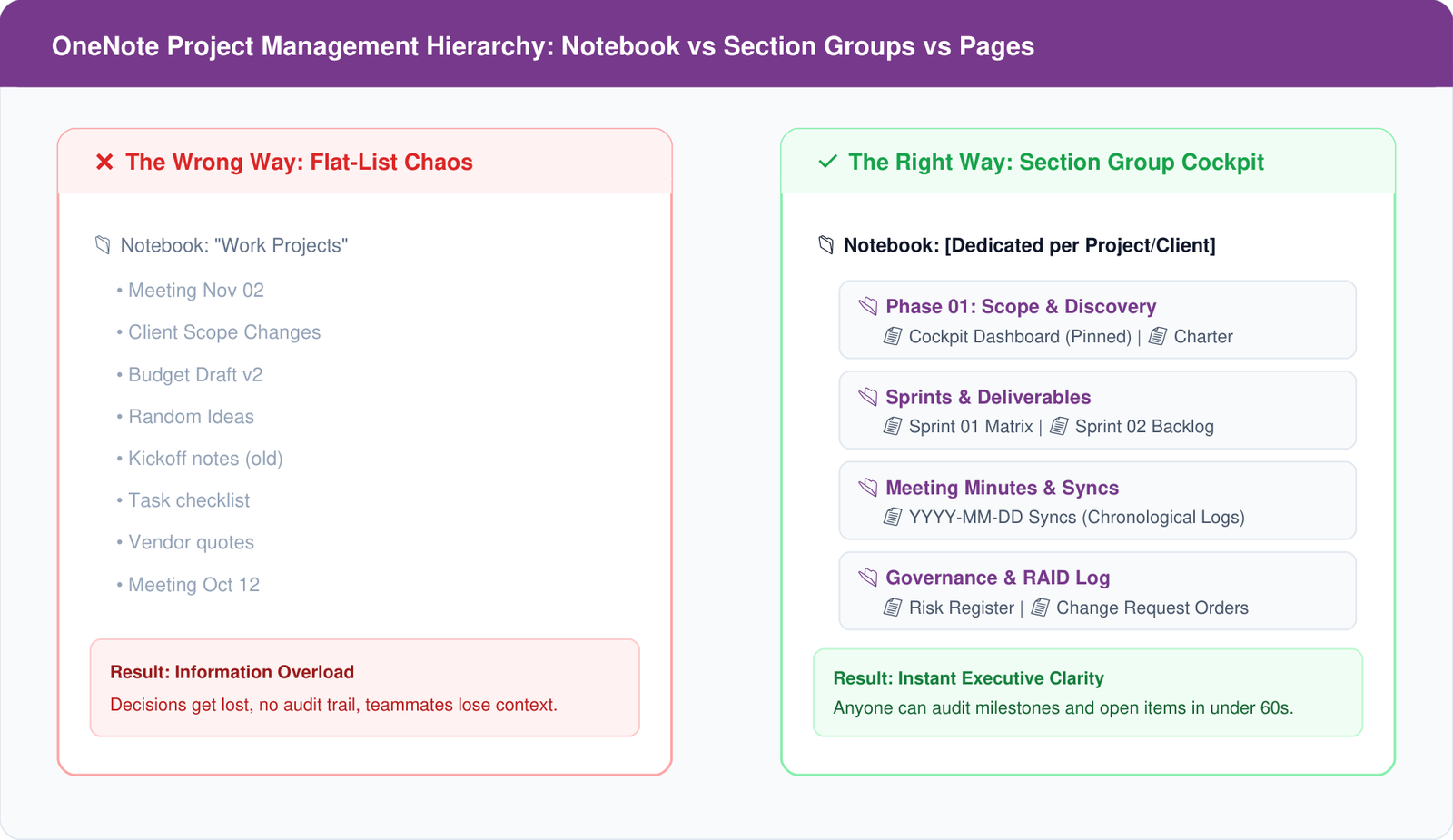
The biggest trap in OneNote is flat-file chaos. If you create a single notebook named “Projects” and dump every client, meeting, and task into a single vertical list of pages, you will lose critical documentation within a month.
Follow this structural hierarchy instead:
📁 Notebook: [Client or Program Name] (e.g., "2026 ERP Migration")
│
├── 📂 Section Group: Phase 01 - Discovery & Scope
│   ├── 📄 Master Project Cockpit (Locked to Top)
│   ├── 📄 Project Charter & Scope Statement
│   └── 📄 Stakeholder Directory & Communication Matrix
│
├── 📂 Section Group: Sprints & Task Deliverables
│   ├── 📄 Sprint 01 Backlog & Status Matrix
│   ├── 📄 Sprint 02 Backlog & Status Matrix
│   └── 📄 Blockers & Out-of-Scope Parking Lot
│
├── 📂 Section Group: Meeting Logs & Working Sessions
│   ├── 📄 2026-11-12 - Architecture Review
│   ├── 📄 2026-11-05 - Weekly Client Sync
│   └── 📄 2026-10-28 - Kickoff Minutes
│
└── 📂 Section Group: Governance & Risk Log
    ├── 📄 RAID Log (Risks, Assumptions, Issues, Dependencies)
    └── 📄 Change Request Log & Sign-offs
Why Section Groups Matter
Notice the use of Section Groups (the small tab with a folder icon, created by right-clicking the section bar and choosing New Section Group). Section groups let you collapse historical phases or completed quarters, keeping your OneNote for project management workspace focused on active sprint notes without visual noise.
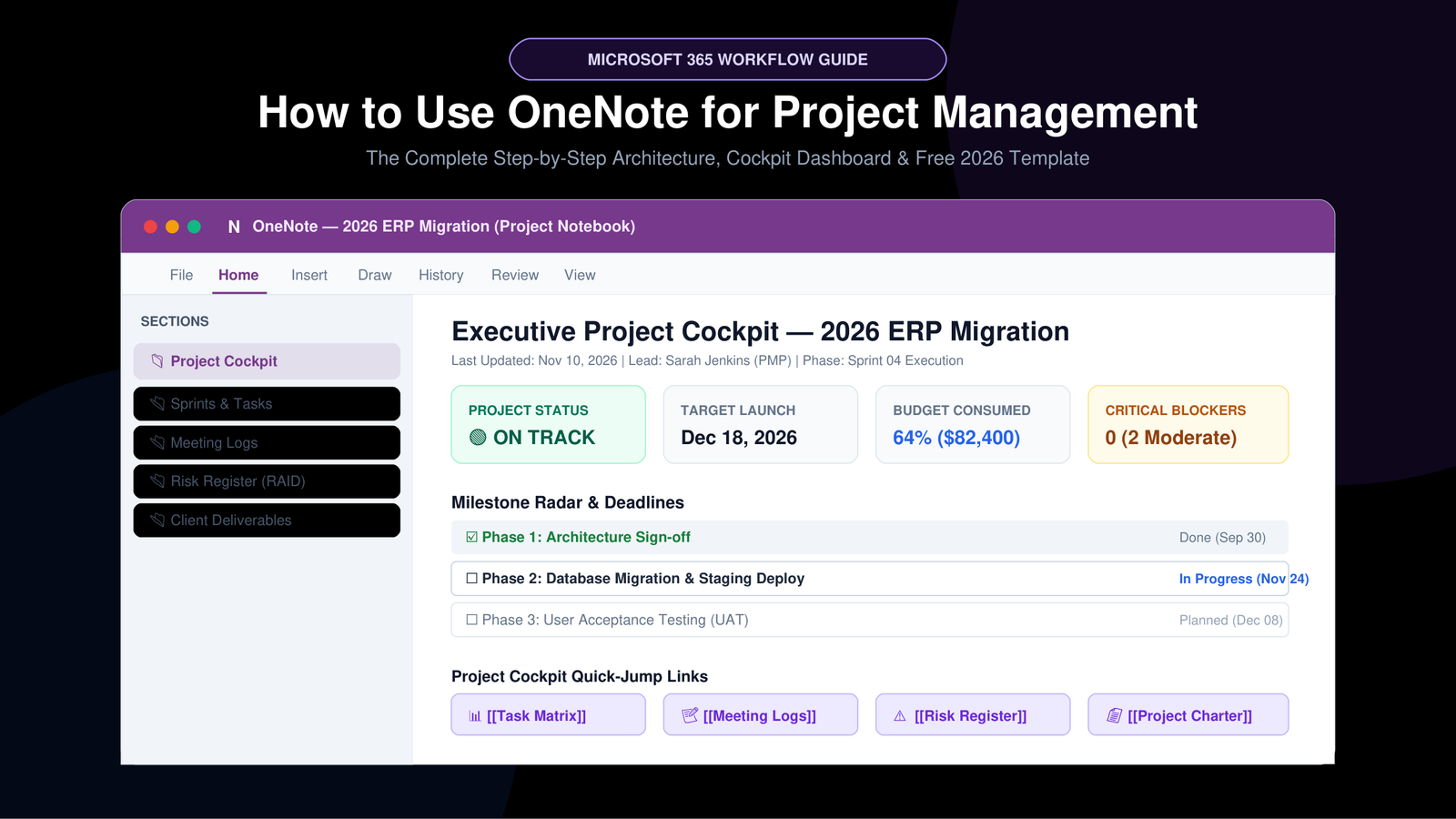
2. Building Your OneNote for Project Management Cockpit
Every project notebook must have a single source of truth page pinned at the very top. When an executive, auditor, or new engineer opens the notebook, this page should tell them everything they need to know in under 60 seconds.
Here is the exact layout to replicate:
# [Project Name] — Executive Project Cockpit
Last Updated: [YYYY-MM-DD] | Project Lead: [Name / Email] | Current Phase: Execution

---

### 1. Snapshot Metrics
| Status | Target Launch | Budget Consumed | Open Critical Blockers |
| :---: | :---: | :---: | :---: |
| 🟢 ON TRACK | Oct 31, 2026 | 62% ($48,500 / $78,000) | 0 (2 Moderate) |

---

### 2. High-Level Milestone Radar
* [x] **Milestone 1**: Stakeholder Discovery & User Sign-off — *Completed Sep 15*
* [ ] **Milestone 2**: Backend API Integration & Staging Deploy — *Due Oct 02 (In Progress)*
* [ ] **Milestone 3**: User Acceptance Testing (UAT) — *Due Oct 18*
* [ ] **Milestone 4**: Production Cutover & Training — *Due Oct 31*

---

### 3. Quick-Jump Navigation (OneNote Page Links)
* 📋 [[Project Charter & Scope]]
* 📊 [[Sprint 01 Task Matrix]]
* 📝 [[Latest Weekly Client Meeting Notes]]
* ⚠️ [[Active Risk & Issue Log]]
The Power-User Trick: Automatic Wiki-Style Inter-Page Linking
Do not manually browse menus to link pages together. OneNote has native wiki-linking built in:
Simply type two opening brackets, the exact name of another page in your notebook, and two closing brackets:
[[Sprint 01 Task Matrix]]
The moment you type the closing ]], OneNote turns the text into an instant, clickable hyperlink pointing directly to that page. If the page doesn’t exist yet, OneNote will automatically create it for you on the spot.
3. The Task Matrix: Lightweight Tracking Without Table Glitches
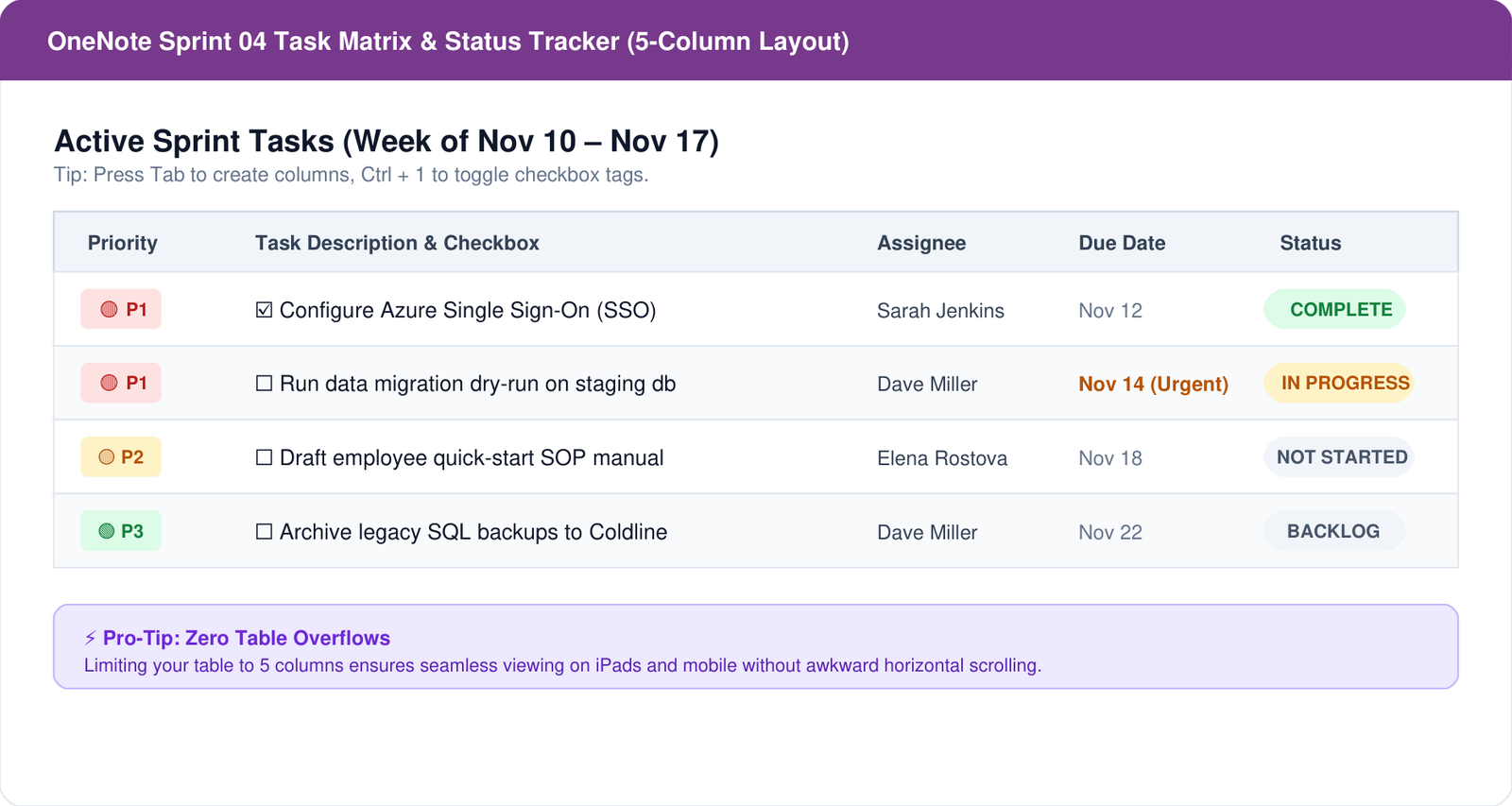
OneNote tables have a notorious reputation for misbehaving if you try to make them too wide. When setting up OneNote for project management, keep your task matrix fast and readable across laptops, tablets, and phones, keep it strictly to 5 columns max.
Here is the battle-tested layout:
| Priority | Task Description | Owner | Due Date | Status |
|---|---|---|---|---|
| 🔴 P1 | Configure Azure Single Sign-On (SSO) | Sarah K. | Oct 04 | In Progress |
| 🟡 P2 | Draft end-user quick reference guide | Mark T. | Oct 08 | Not Started |
| 🟢 P3 | Archive legacy user accounts in Active Directory | Dave R. | Oct 12 | In Review |
| ⚪ P4 | Schedule stakeholder retrospective meeting | Sarah K. | Oct 15 | Backlog |
Keyboard Shortcuts That Save Hours on This Table:
- Create a Table Instantly: Type your first header (e.g.
Priority), then pressTab. OneNote instantly spawns a two-cell table. Keep hittingTabto add columns, and hitEnterin the last cell to create the next row. - Insert a Checkbox Tag: Press
Ctrl + 1(Windows) orCmd + 1(Mac) to toggle an interactive checkbox next to any task. - Mark Important: Press
Ctrl + 2to add a gold star tag to critical items. - Clear Text Formatting: If you pasted text from an email or Slack and it brought over ugly grey backgrounds, select the row and press
Ctrl + Spaceto strip all foreign styling instantly. (For case-cleaning bulk text, you can also run it through our free Case Converter Tool).
4. Meeting Minutes in OneNote for Project Management
Most meeting notes are write-only archives: someone types them, nobody reads them, and action items vanish into thin air.
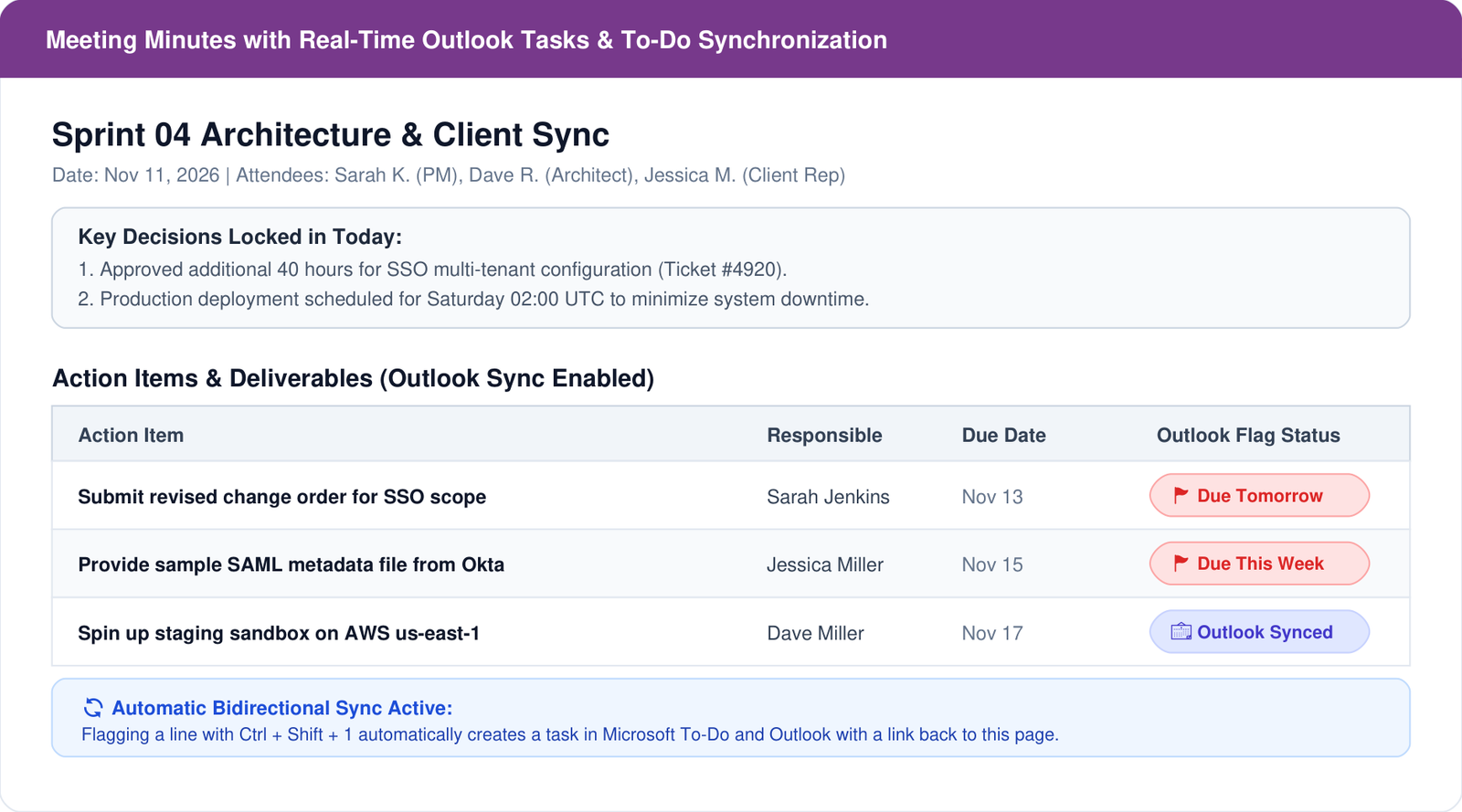
To fix this, when using OneNote for project management, structure every meeting page with an Action Item Table tied directly into Microsoft Outlook:
# 2026-11-09 — Sprint 04 Architecture & Scope Sync
Attendees: Sarah K. (PM), Dave R. (Lead Architect), Jessica M. (Client Rep)
Absentees: Elena V. (Dev Lead)

### Key Decisions Made Today
1. Decided against migrating legacy v2 data; will archive historical logs in cold storage.
2. Client approved additional 40 hours for SSO multi-tenant configuration.
3. Next production release frozen until Oct 14 security review completes.

### Action Items & Deliverables
| Action Item | Responsible | Due Date | Sync Status |
| :--- | :---: | :---: | :---: |
| Submit revised change order for SSO scope | Sarah K. | Nov 11 | Outlook Flagged |
| Provide sample SAML metadata file | Jessica M. | Nov 13 | Pending |
| Spin up isolated test environment on AWS | Dave R. | Nov 15 | In Progress |
How to Turn OneNote Action Items into Real Outlook Tasks:
You do not need to manually re-type action items into your calendar or task list.
- Highlight any task or line of text on your OneNote page.
- In the top ribbon, look for the Outlook Tasks button (or press
Ctrl + Shift + 1through5for different due-date presets). - Select Tomorrow, This Week, or Custom.
OneNote immediately places a red flag next to the text. That item now automatically appears inside your Microsoft Outlook Tasks and Microsoft To Do app on your phone, complete with a direct clickable link back to this exact paragraph in OneNote. When you complete the task in Outlook or To Do, the flag in OneNote automatically ticks itself off.
5. The RAID Log (Risk, Assumption, Issue & Dependency Register)
When a project goes sideways, executive sponsors never ask about your font choices—they ask when you identified the risk and what mitigation plan you had in place.
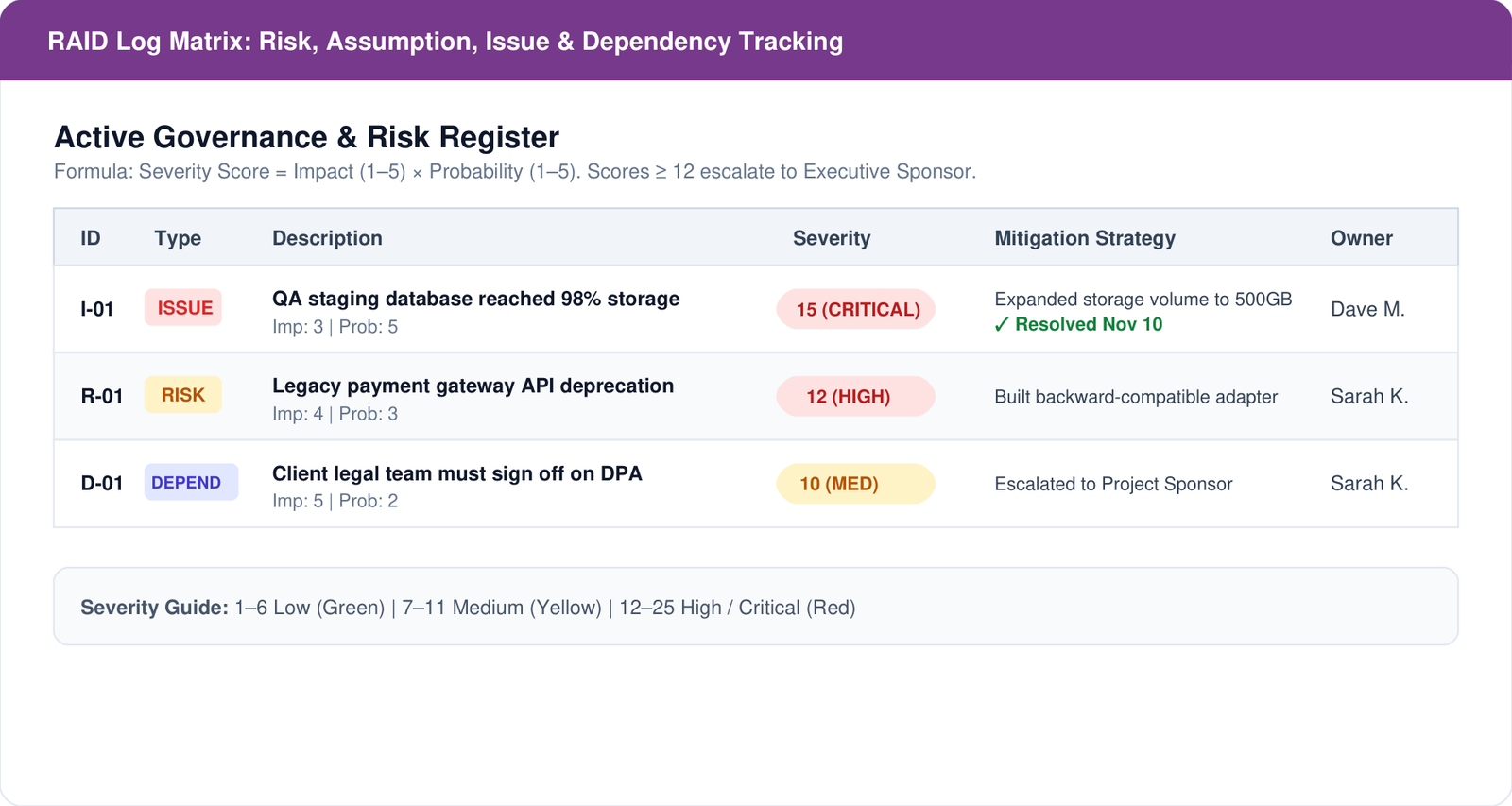
In any reliable OneNote for project management setup, dedicate a permanent page in your Governance section to a clean RAID matrix:
| ID | Category | Item Description | Impact (1–5) | Probability (1–5) | Severity Score | Mitigation Strategy | Owner |
|---|---|---|---|---|---|---|---|
| R-01 | Risk | Third-party payment gateway API deprecation | 4 | 3 | 12 (High) | Build sandbox adapter to isolate API endpoints | Dave R. |
| I-01 | Issue | QA staging server running out of disk space | 3 | 5 | 15 (Critical) | Requested 500GB storage expansion ticket #4819 | Mark T. |
| D-01 | Dependency | Client legal team must approve revised DPA | 5 | 2 | 10 (Med) | Escalated to Project Sponsor for fast-track review | Sarah K. |
Pro-Tip: Calculate Severity Score simply as
Impact × Probability. Anything scoring 12 or higher gets copied directly into your weekly executive dashboard bullet points.
6. How to Save and Deploy This as a Reusable Template in OneNote 365
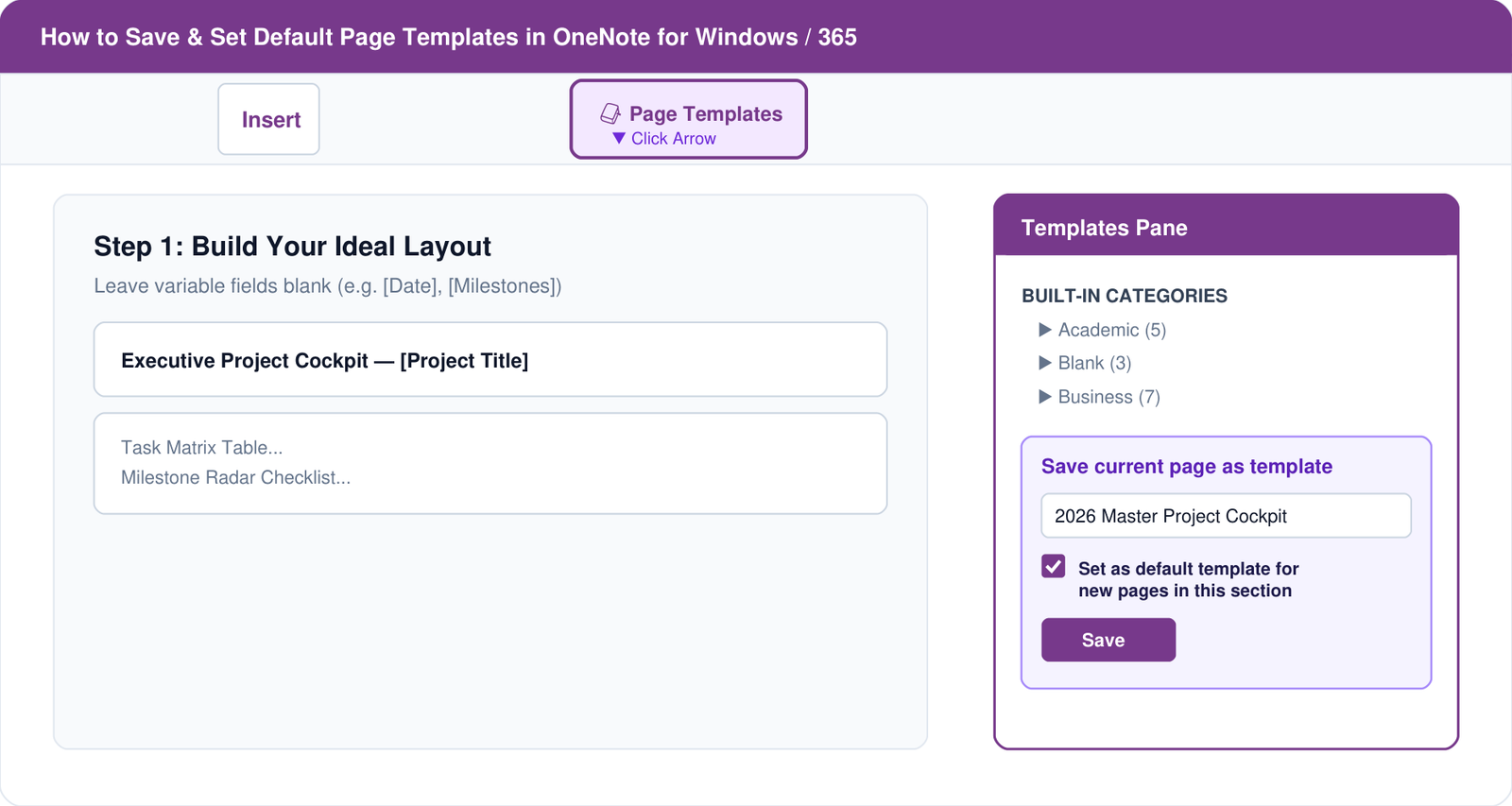
If you are using the modern OneNote for Windows / Office 365 app, you may have noticed that Microsoft moved (and sometimes hid) the old template side pane.
When configuring OneNote for project management across teams, here is the fail-safe method to make your new layout the default template for every new page:
- Build your ideal layout on a clean page (or import our
.onepkgstarter file). - Leave the placeholder text (e.g.
[Client Name],[Date]) blank or standardized. - Click the Insert tab on the top ribbon.
- Click the dropdown arrow under Page Templates and select Page Templates… at the very bottom.
- In the sidebar that appears on the right, expand the bottom section labeled Save current page as a template.
- Name your template (e.g. “2026 Master Project Cockpit”).
- Crucial Step: Check the box that says “Set as default template for new pages in the current section”.
- Click Save.
From now on, whenever you click + Add Page in that section, your complete structured dashboard will appear instantly—no copy-pasting required.
(If you ever run into ribbon buttons being locked or grayed out when setting this up, consult our diagnostic checklist on Fixing Grayed-Out Word & Office Ribbon Buttons).
7. Security & Client Sharing: How Not to Leak Confidential Data
One of the most dangerous traps when using OneNote for project management with external vendors is accidental oversharing.
In Microsoft OneNote, permissions are managed at the Notebook level, not at the Page level.
If you invite an external client or contractor to your internal project notebook, they can read every single tab and page in that notebook, including internal billing notes, salary estimates, and contractor rates stored on other pages.
The Two Safe Ways to Share with Clients:
- The “Two-Notebook” Rule (Best Practice):
- Keep one internal notebook:
[Project Name] - Internal(Team only). - Keep one external notebook:
[Project Name] - Client Shared(Only polished meeting notes, status reports, and deliverables live here).
- Keep one internal notebook:
- Exporting Clean PDFs for Weekly Recaps:
- Never send a raw
.onelink to an executive who doesn’t use OneNote. - Go to File > Export > Page > PDF. OneNote compiles your clean tables and decisions into a crisp document you can attach to an email in two seconds.
- Never send a raw
Technically, you can draw horizontal colored bars inside a table, but you shouldn’t. OneNote has no formula engine to adjust dates automatically when a predecessor task slips. If you need a Gantt chart, build it in Microsoft Excel or Microsoft Project, take a clean screenshot, and paste it into your OneNote Project Cockpit with a direct link to the live spreadsheet.
OneNote for Mac does not natively unpack .onepkg files because they are Windows container files. Mac users should open OneNote on the web (onenote.com), upload the notebook to OneDrive, or open our included raw Markdown text template and paste it into a blank Mac notebook page. It formats identically in seconds.
Microsoft Loop is designed for real-time multiplayer co-authoring of tiny, atomic components across Teams chats and Outlook emails. OneNote is your permanent system of record. In fact, in modern OneNote 365, you can paste a Loop Component directly into a OneNote page to get the best of both worlds: live updating task lists nested inside a permanent notebook archive.
Check out our complete reference guide: Master OneNote Keyboard Shortcuts: Complete Cheat Sheet to master text formatting, bullet navigation, and table manipulation without touching your mouse.