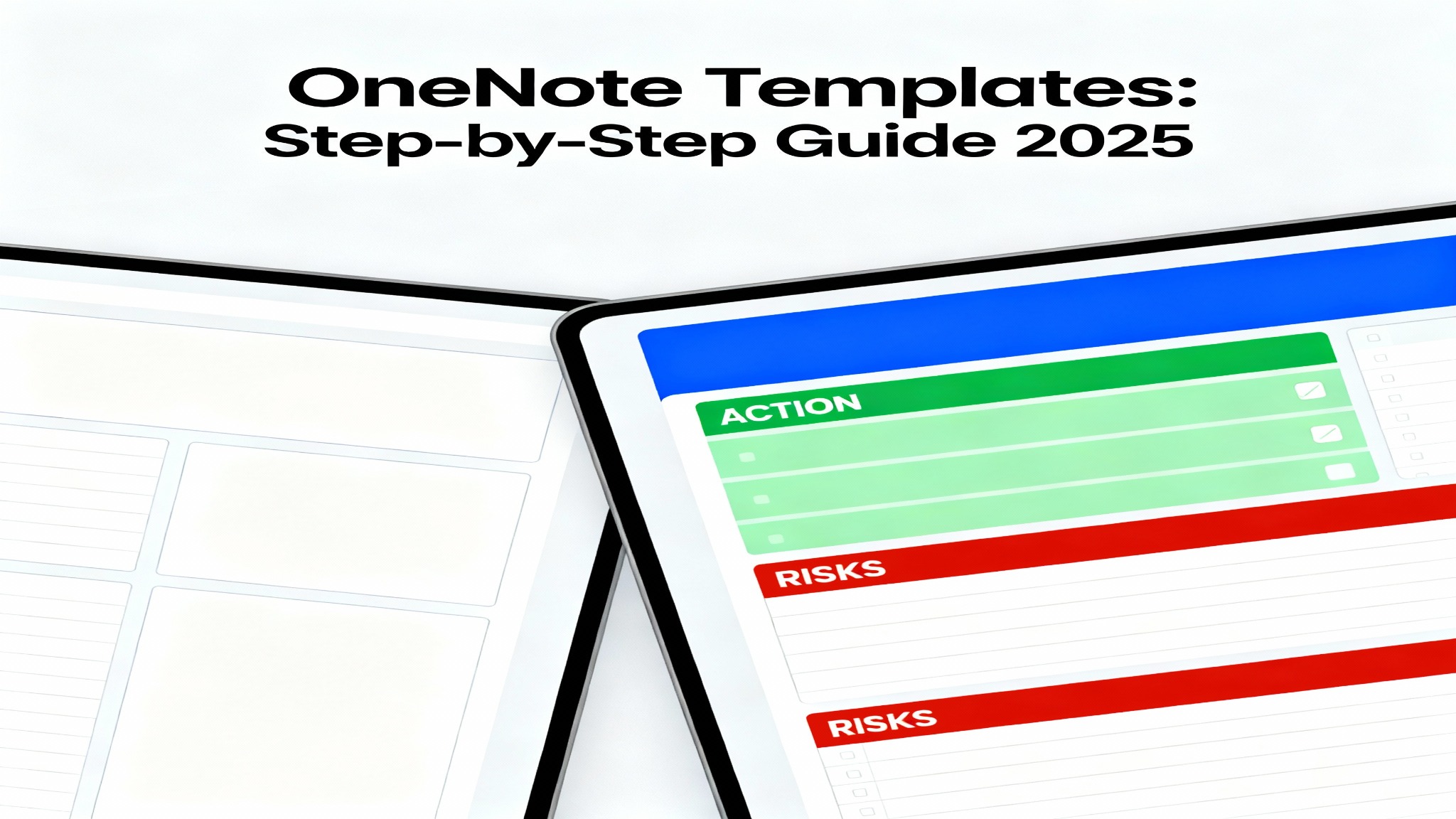
Staying organized in today’s fast-paced digital world requires more than just a note-taking app—it requires systems. OneNote templates transform how you document information, whether you’re managing a project, tracking meeting outcomes, or organizing research. Rather than starting from a blank page every time, templates provide pre-built structures that save time, ensure consistency, and make collaboration seamless.
What Are OneNote Templates and Why They Matter
OneNote templates are pre-formatted pages or notebook sections that serve as starting points for new notes. Instead of manually recreating the same layout repeatedly, you apply a template once and reuse it as needed. This simple feature has profound implications for productivity professionals, students, and teams who manage recurring documentation tasks.
According to 2024 data, over 3,500 companies worldwide use OneNote for document management, with adoption strongest in IT services (1,608 companies), healthcare (809), and higher education (777) sectors. The reason is straightforward: templates reduce setup friction and enforce standardization across teams.
Templates come in two forms: built-in templates provided by Microsoft and custom templates you create from scratch. Microsoft OneNote introduced Copilot AI integration in 2024, enabling features like automatic note summarization and intelligent organization—capabilities that work beautifully within template frameworks.
How to Use Built-In OneNote Templates
Using Microsoft’s pre-made templates is the fastest way to get started. Here’s how:
Step 1: Access the Templates Pane
Open OneNote and navigate to the Insert tab in the ribbon. Click Page Templates (or the dropdown arrow below it). A sidebar labeled “Templates” will appear on the right side of your screen, displaying template categories.
Step 2: Browse Available Templates
The templates sidebar shows several built-in categories, including class notes, meeting notes, decorative backgrounds, and blank layouts. Scroll through to find a template that matches your needs. Microsoft includes templates for common use cases like lectures, project planning, and personal organization.
Step 3: Apply the Template
Simply click on a template to apply it to the current page. The page layout instantly transforms to match the selected template, preserving any content you’ve already typed. If you want to use a template for all new pages in the current section, locate the “Always use a specific template” dropdown and select your preferred template before creating new pages.
Key Insight: Built-in templates work only on OneNote for Windows desktop. Mac users, web browser users, and mobile users can access templates through workarounds (covered in the mobile section below).
Creating Custom OneNote Templates from Scratch
Built-in templates are helpful, but custom templates tailored to your exact workflow provide exponentially more value. Here’s how to build them:
Step 1: Design Your Template Page
Start with a blank page in OneNote and design it exactly as you want future pages to look. Add placeholders for information that will change, such as DATE, PROJECT_NAME, or CLIENT_ID. Use formatting, tables, lists, and headings to create structure. For example, a meeting notes template might include sections for Attendees, Agenda, Decisions, and Action Items.
Include text that won’t change (like headers) and leave space for dynamic content. Use tables for organized data entry, bullet points for flexibility, or structured forms with checkboxes for standardized processes.
Step 2: Save as Template
Once your page design is complete, go to Insert > Page Templates and click “Save current page as template” at the bottom of the Templates sidebar. A dialog box will appear asking you to name your template.
Enter a descriptive name like “Weekly Team Standup” or “Client Meeting Notes.” Check the box labeled “Set as the default template for any new pages created in the existing section” if you want this template to auto-apply to all new pages in that section.
Click Save. OneNote stores your template in a category called “My Templates” for easy access.
Step 3: Apply Your Custom Template
Your custom template now appears under “My Templates” in the Templates sidebar. Click it anytime to create a new page with your exact layout.
Advanced Tip: Save multiple versions of your templates (e.g., “Meeting Notes v1,” “Meeting Notes v2”) as you refine your workflow. This allows you to revert to earlier formats if needed or maintain templates for different purposes (quick syncs vs. formal meetings).
OneNote Templates on Mac, Web, and Mobile
OneNote for Windows offers full template support, but users on Mac, web browsers, and mobile platforms have limited native options. However, effective workarounds exist:
Mac Workaround
Mac users can simulate template functionality using the Copy Page To feature:
Create your template note as a normal page, then right-click on the page name and select Copy Page To. Choose a location (section or notebook) to paste it. Every time you need a fresh instance of your template, repeat this process.
Alternatively, use third-party tools like Onetastic (a OneNote add-in for Windows that syncs templates to Mac) or maintain a dedicated “Templates” section in your notebook for manual copying.
Web Workaround
The OneNote web app uses a simpler manual approach:
Create your template page, then right-click and select Copy. Navigate to another location and right-click, then select Paste to create an instant duplicate. Unlike Windows, this doesn’t automatically save as a template, but it achieves the same functional result.
For a streamlined web experience, consider platforms like Notegram, which allows you to sign into your Microsoft account and apply pre-made templates directly to web-based OneNote notebooks.
Mobile Workaround
On iOS and Android, open your OneNote app and navigate to your template page. Tap the Edit button, select the page, then tap the Copy icon (box with arrow). Choose Copy, then select where you want the new instance to appear.
While less intuitive than desktop templates, this process replicates template functionality on mobile. For frequent mobile users, maintaining a dedicated “Template Library” section with your most-used formats speeds up the process.
Real-World OneNote Template Examples
Templates work best when aligned with specific use cases. Here are five proven examples:
1. Weekly Project Status Report
Structure: Project name, sprint number, completed items (checklist), in-progress tasks, blockers/risks, next week priorities, team notes.
Use Case: Remote teams use this to maintain asynchronous project visibility. Managers create one instance per week, team members fill in sections, and the notebook becomes a searchable project archive.
2. Meeting Notes with Action Items
Structure: Meeting title, date, attendees, agenda, key decisions, discussion notes (organized by topic), action items (with owner and due date), follow-up items.
Use Case: Sales, management, and cross-functional teams use this to ensure meeting outcomes are documented and tracked. Action items auto-trigger tasks in Microsoft Outlook or Teams.
3. Student Study Notes
Structure: Course name, lecture date, key concepts (with definitions), examples, questions for review, connections to previous lectures, practice problems.
Use Case: Students create one instance per lecture, ensuring consistent note formats across subjects. The template enforces active learning by including sections for reflection and practice.
4. Client Intake Form
Structure: Client name, contact information, project objectives, budget, timeline, deliverables, communication preferences, notes.
Use Case: Freelancers and agencies use this to standardize client information capture. The template ensures no details are missed and provides quick reference for project context.
5. Daily Work Log
Structure: Date, daily priorities (top 3), completed tasks, time spent per task, meetings attended, notes/learnings, tomorrow’s focus.
Use Case: Individual contributors and managers use this to track productivity and communicate progress. Over time, it creates a personal performance archive.
Advanced Customization: Taking Templates Further
Once comfortable with basic templates, consider these advanced techniques:
Conditional Formatting with Dropdowns
Add dropdown lists to your template for consistent data entry. Use Tables to organize information hierarchically. For example, a project status template might have dropdowns for Status (On Track, At Risk, Delayed) and Priority (High, Medium, Low).
Linking Templates Together
Create multi-page template systems where pages link to each other. A project management template might include a master dashboard page that links to individual task pages, timeline pages, and resource allocation pages. Users can navigate between linked pages while maintaining context.
Integration with Copilot AI (2025 Feature)
OneNote’s new Copilot integration works within templates to auto-generate to-do lists, summarize handwritten notes, and suggest action items. When you apply a template for meeting notes, Copilot can automatically extract decisions and create action item follow-ups, saving 10-15 minutes per meeting.
Automation with Zapier
Connect OneNote to thousands of apps via Zapier. Automate actions like creating a new meeting notes page when a calendar event is added, copying Trello cards into a OneNote project template, or syncing Evernote notes directly into your OneNote template system.
Best Practices for Template Organization
Templates work best within an organized system:
Create a Template Library Section
Dedicate a notebook section to “Templates” or “My Templates” where you store all template instances. This keeps your main working sections clean and makes templates easy to discover and copy.
Use Consistent Naming Conventions
Name templates clearly: “Meeting Notes – Standard,” “Project Brief – Client Work,” “Daily Log – Individual.” Include version numbers if you iterate: “Client Intake v2.1.” Clear naming reduces confusion and speeds up template selection.
Audit and Retire Old Templates
Review your template library quarterly. Remove templates you no longer use and update templates based on workflow changes. Outdated templates create friction.
Test Templates Before Deployment
If sharing templates with a team, test them across devices and OneNote platforms. What works perfectly on Windows desktop might not render correctly on Mac or the web. Test in your actual use case before announcing rollout.
Troubleshooting Common Template Issues
Even experienced users encounter template challenges. Here’s how to resolve them:
Issue: Template Not Appearing in Sidebar
Solution: Templates only appear after successful saving. Go to Insert > Page Templates > Save current page as template. Ensure you named the template and clicked Save. If it still doesn’t appear, restart OneNote. Templates are stored locally, so restarting refreshes the cache.
Issue: Template Format Changes When Applied
Solution: OneNote may adjust formatting based on your device or screen size. Use simpler formatting (fewer merged cells, standard fonts) to ensure consistency across platforms. Avoid heavy graphics; they can cause rendering issues.
Issue: Template Changes Don’t Sync Across Devices
Solution: Custom templates are stored locally on your device. To share templates across devices, save a copy of your template page as a .one file to OneDrive, then import it on other devices. Alternatively, use cloud-based template repositories like Notegram or OneNote Gem.
Issue: Template Not Available on Mac/Web
Solution: Native template support only exists on Windows desktop. On Mac, web, and mobile, use the copy-page workaround or access templates through web-based repositories. Consider Notion or Coda as alternatives if cross-platform template support is critical.
OneNote Templates vs. Competing Platforms
How do OneNote templates compare to alternatives?
| Feature | OneNote Templates | Notion Templates | Evernote Templates |
|---|---|---|---|
| Native Support | Windows only | All platforms | Web-based (limited) |
| Customization Depth | High (design freedom) | Very High (modular blocks) | Medium (basic layouts) |
| AI Integration | Copilot (2024+) | Generative writing | No AI features |
| Offline Access | Full offline editing | Limited offline support | No offline support |
| Learning Curve | Low (intuitive) | Moderate (steeper) | Low (simple) |
| Best For | Quick capture, handwriting | Structured projects, databases | Simple note-taking |
| Price | Free/Microsoft 365 | Free/$13/month | Free/Evernote+ |
Verdict: Choose OneNote templates if you’re deeply invested in Microsoft 365, value handwriting support, and prefer simplicity. Choose Notion if you need cross-platform template functionality and advanced database capabilities. Choose Evernote for minimalist, distraction-free templating.
Getting Templates: Free Resources and Downloads
You don’t have to start from scratch. Hundreds of free and premium templates are available:
Free Template Repositories:
- OneNote Gem: 20+ free templates including GTD, Cornell notes, Kanban boards, and planners
- Notegram: Direct integration with OneNote web; browse and apply templates without downloads
- Auscomp: Comprehensive business templates including project management, staff rosters, and CRM templates
- Calendarlabs: Calendar-focused templates for planners, trackers, and event management
- The Better Grind: Productivity-focused templates for work-life balance and daily planning
Premium Template Bundles:
- OneNote Productivity Templates Bundle 2025: Weekly planner, meeting notes, project planner, to-do lists ($15-30)
- NotesTemp Project Management Premium: 54-page project management notebook with Gantt charts, KPI dashboards, risk plans ($34.99)
- Auscomp Business Solutions Package: Complete organizational templates covering all business functions
How to Install Downloaded Templates:
- Download the
.onetemplate file from a repository - Open OneNote and create a new page in your target section
- Right-click the page and select “Move or Copy” (or manually open the file)
- Navigate to the downloaded
.onefile and open it - The template page appears; you can now use it as a reference or save it as a template using the “Save current page as template” method
FAQ Section
Q1: Can I use OneNote templates on my iPad or iPhone?
A: OneNote’s mobile apps don’t support native templates, but you can simulate templates using the copy-page workaround. Tap Edit, select the template page, tap the copy icon, and paste it where needed. For a better mobile template experience, consider Notion or other cross-platform apps.
Q2: What’s the difference between a page template and a notebook template?
A: Page templates format individual pages within a section. Notebook templates pre-structure entire sections with multiple pages. OneNote focuses on page templates; if you want to pre-structure entire sections, create a master notebook and duplicate it.
Q3: Can I share custom templates with my team?
A: Not directly through OneNote’s built-in share feature. Instead, save your custom template as a .one file, upload it to OneDrive or SharePoint, and share the link with team members. They can download and import it into their OneNote, then save it as a template locally.
Q4: How does Copilot AI enhance OneNote templates?
A: Copilot can automatically extract action items from meeting notes templates, summarize handwritten notes within templates, and suggest next steps based on template content. These features are available through Microsoft 365 subscriptions (2024+). Ask Copilot to “summarize this meeting” or “create action items” and it processes template-structured data intelligently.
Q5: Is OneNote templates free?
A: Yes. OneNote and its template functionality are free. You can create unlimited custom templates at no cost. Premium features like Copilot AI require a Microsoft 365 subscription (starting $99.99/year for personal plans).
Q6: Why won’t my OneNote template appear after I save it?
A: Templates appear only in the section where you saved them. If you don’t see your template immediately, restart OneNote to refresh the template cache. Templates are stored locally on your device; restarting forces OneNote to re-index them.
Q7: Can I create templates in OneNote for the web?
A: OneNote for the web doesn’t support creating or saving templates natively. However, you can manually copy and paste pages to simulate templates. For full template functionality, use OneNote desktop for Windows or explore platforms like Notion that support web-based templates.
Conclusion and Next Steps
OneNote templates are a powerful yet underutilized feature for professionals, students, and teams seeking to work smarter. Whether you’re using built-in templates or crafting custom systems aligned to your exact workflow, templates transform one-time designs into reusable productivity infrastructure.
Start implementing templates today:
- Audit your recurring tasks – Which pages or sections do you recreate regularly?
- Design a template – Build one template using the step-by-step process in this guide
- Test and refine – Use your template for 2-3 cycles and adjust based on real-world friction
- Expand your system – Create additional templates for other recurring tasks
- Share and scale – If you manage a team, package your templates for team-wide adoption
By combining OneNote’s native template support with customization techniques, real-world examples, and 2025 AI features, you’ll create a note-taking system that evolves with your needs rather than limiting them.